Account Management & Setup
Team Management in CompliantChatGPT
Use CompliantChatGPT with your team members to collaborate efficiently and securely across your organization, enjoying the benefits of artificial intelligence in medicine.
Let’s walk through how to create a team! This feature lets you invite teammates so your organization can use AI in medicine in a safe and effective way.
Steps to creating a team in CompliantChatGPT
Head over to Settings in our medical AI and open the Team tab.
Here, you can edit your team name, set your team’s conversations retention policy, choose your PHI Guard Policy Management, connect your EHR, assign seats, and invite new team members.
Click “Add seats” and choose how many you’d like. Seat changes take effect immediately, and you’ll be billed for the additional seats for the remainder of your current billing cycle.
Once that’s done, you can invite teammates by entering their email addresses. They’ll receive an onboarding email, and once they sign up or log in, they’ll automatically be added to your team.
After your team is set up, you’ll also be able to create shared custom modes. To do that, go back to the main chat page and click “Custom Modes” in the top-right corner. Create a new mode and make sure to toggle “Share Custom Mode with my team.”
Your shared custom modes will appear for everyone in your team anytime you open the Custom Modes menu, or at the bottom of the Default Mode dropdown.
And that’s it! Your team is ready to go, and you can start using CompliantChatGPT’s features together.
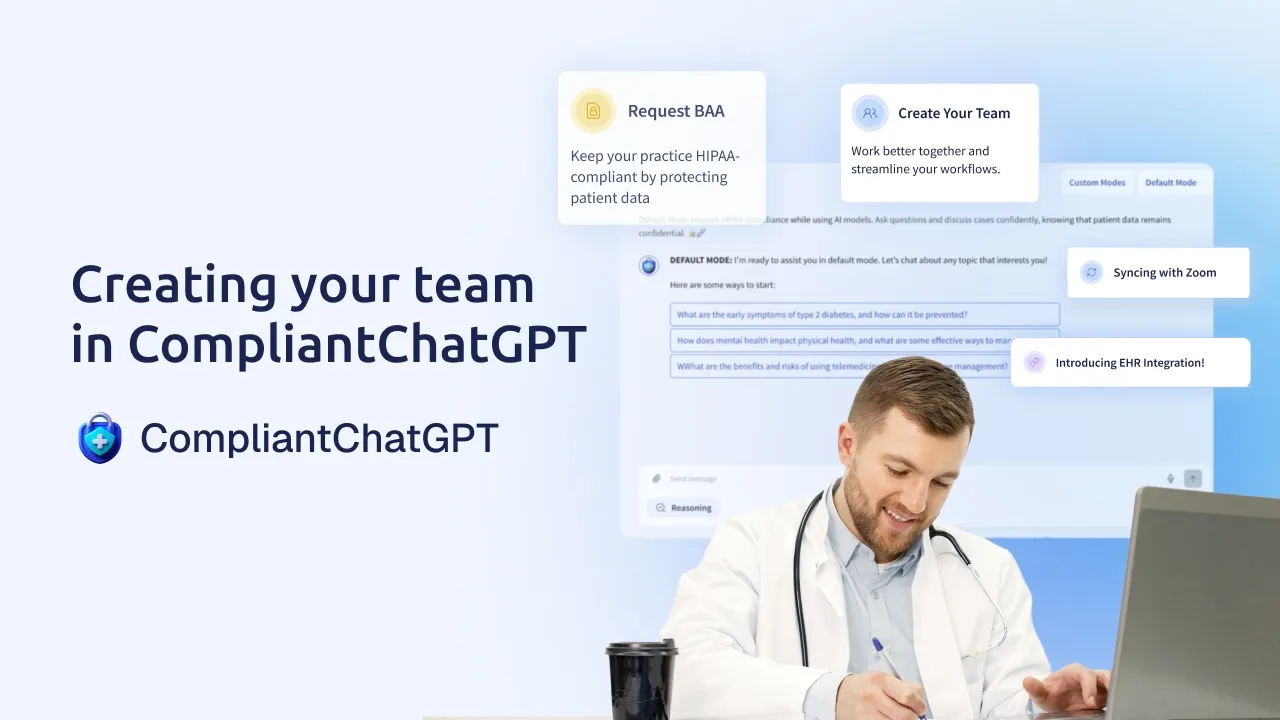
Watch our demo on how to create your team in CompliantChatGPT:
Frequently Asked Questions
How many team members can I invite to CompliantChatGPT?
You can invite as many team members as you’d like to collaborate with you on CompliantChatGPT.
How much does a seat cost?
All your seats will cost the same as the plan you’re using.
Which plans include access to Team Management?
The team collaboration feature is available for all plans!
Can I manage data retention policies for my entire team?
Yes. Within the Team tab in your settings, there is a Retention Policy toggle that allows administrators to securely configure how long conversations are stored (such as enabling the default 24-hour retention period) for the team.

