Modes & Custom Modes
Custom Modes: All You Need to Know
What Are Custom Modes?
Custom modes let you “pre-set” how the AI should behave, so you don’t have to repeat the exact instructions every time. You tell the system how you want it to think, write, or respond, and it will follow those instructions automatically. You can add system prompts, upload files, and share the mode with your team, so everyone works from the same guidelines.
How They Work
You define the instructions once, and the AI follows them in every conversation inside that mode. This lets you control tone, structure, terminology, and priorities without rewriting the exact instructions each time.
You can include:
Written guidelines
Templates or formats
Clinical or operational instructions
Reference documents
Once saved, you can choose whether you want to share the mode with your team so they can select the mode and start chatting with the AI under the same conditions.
What You Can Define
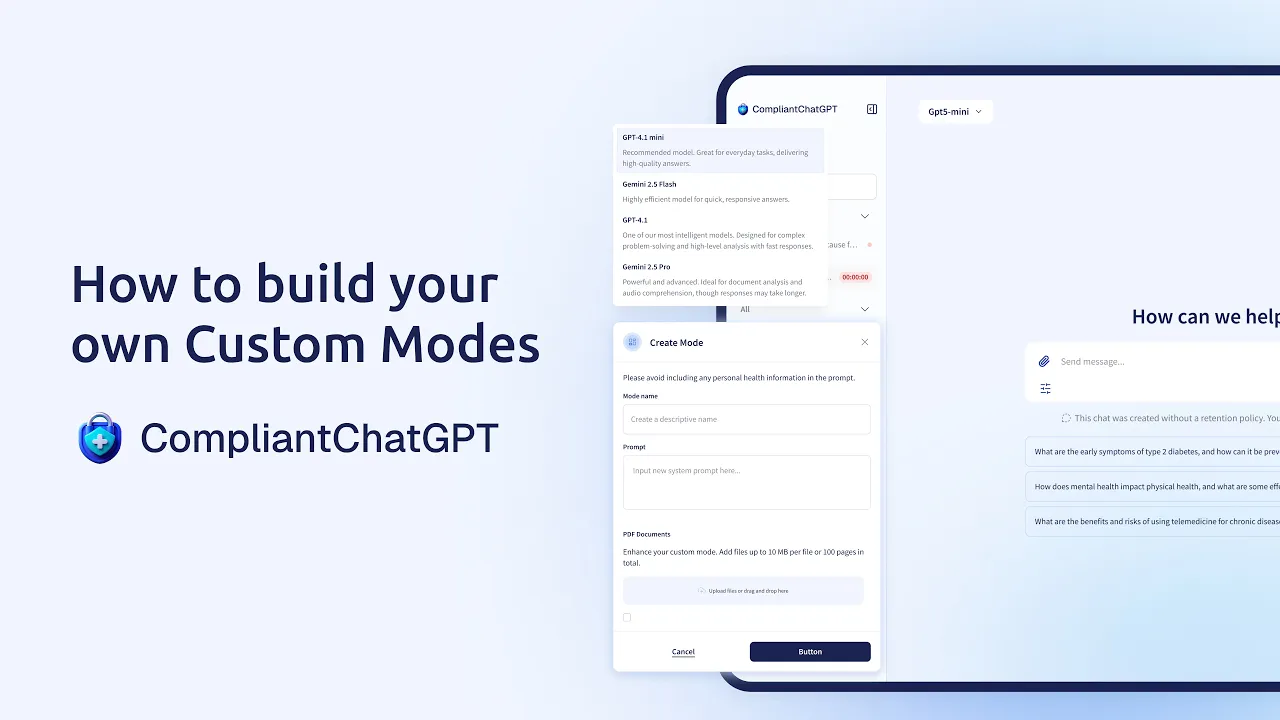
Mode name: A descriptive label so you and your team can quickly identify it. Example: "Pediatric Discharge Summary" or "Research Literature Review."
Mode instruction: The system prompt that tells the AI how to behave. Define tone, structure, terminology, formatting rules, and any clinical or operational guidelines.
Attached documents: Upload PDF or text files as reference material. The AI uses these documents as context when responding — useful for clinical protocols, style guides, formularies, or institutional policies.
Team sharing: Choose whether the mode stays private (only you can see and use it) or is shared with your entire team.
Check this video to understand how to configure one of your own!
When to Use Custom Modes
When you use the AI for routine tasks and require the information to follow the same format each time. Some examples are
Creating documentation in a specific format
Drafting patient-facing materials with approved language.
Using the same style or guidelines across a care team to ensure the best patient experience.
Supporting internal processes like quality checks or admin tasks.
Why They’re Valuable
Custom modes help teams:
Stay consistent: Everyone follows the exact instructions and produces the same outputs.
Save time: No need to restate guidelines in every new chat.
Reduce errors: Clear rules reduce variation and keep responses aligned with your standards.
Share best practices: Teams can reuse the same mode across roles, clinics, or departments.
Private vs. Team Custom Modes
Custom Modes are organized into two sections, letting individuals experiment freely while teams standardize on shared best practices.
🔒 Private Custom Modes | 👥 Team Custom Modes |
|---|---|
Visible only to you | Visible to everyone on your team |
Ideal for personal workflows | Created by checking "Share with team." |
Perfect for experimental prompts | Creator's name displays below the mode name |
Great for specialty-specific instructions | Only the creator can edit or delete |
Tips for writing effective instructions
A focused, specific mode of instruction is the difference between consistently great output and "close enough." Keep these principles in mind.
Be specific. Instead of "write professionally," say "use formal clinical language, avoid abbreviations, and include ICD-10 codes where applicable."
Define structure. Tell the AI exactly what sections to include and in what order. Example: "Always structure the output as Chief Complaint, HPI, Assessment, Plan."
Set boundaries. Specify what the AI should NOT do. Example: "Do not suggest medications outside the attached formulary."
Include examples. If you want a specific format, paste a short example directly in your instructions.
Keep it focused. One mode per workflow. A mode that tries to do everything will be less effective than several focused modes.
Iterate. Edit the mode after seeing real outputs. The pencil icon makes it easy to refine your instructions based on what works.
Frequently Asked Questions
What is a Custom Mode?
A reusable set of AI instructions that you define once and apply to any conversation. It controls how the AI responds — tone, format, terminology, and clinical guidelines — without you repeating those instructions every time.
How are Custom Modes different from built-in modes?
Built-in modes are pre-configured by CompliantChatGPT for common healthcare workflows. Custom Modes are ones you create yourself, tailored to your specific practice, specialty, or team. You have full control over the instructions and can attach your own reference documents.
Do I need a specific plan to use Custom Modes?
No. Custom Modes are available on all plans!
Is there a limit to how many Custom Modes I can create?
There is no hard limit. Build as many as you need for your different workflows.
Can I attach files to a Custom Mode?
Yes. PDF and text files serve as reference material. The AI uses these documents as context in every conversation that uses the mode. File size and page limits depend on your plan.
Can I edit a Custom Mode after creating it?
Yes. Click the pencil icon to update the name, instructions, or attached documents. Changes apply to all future conversations using that mode.
Can I delete a Custom Mode?
Yes. Click the trash icon. Deletion is permanent. Existing conversations that used the mode retain their history, but the mode is no longer available for new conversations.
Can I share a Custom Mode with my team?
Yes. Check the "Share Custom Mode with my team" option when creating or editing. The mode appears in the Team Custom Modes section for all team members.
Can my team members edit a mode I shared?
No. Only the creator can edit or delete a mode, even if shared. Team members can use it, but cannot modify it.
How do I select a Custom Mode for a conversation?
Open the mode selector in the upper-right corner of your chat, navigate to Custom Modes, and click the mode you want. All messages in that conversation will follow the mode's instructions.
Can I switch modes mid-conversation?
Yes. Change the active mode at any point during a conversation. The AI follows the new mode's instructions for subsequent messages.

