Patients & Projects
How to Work with a Patient in CompliantChatGPT
The Patient Portal lets you create individual patient records inside CompliantChatGPT. Each patient acts as a centralized hub where all related conversations, context, and clinical data live together.
Full name and background notes: Add a clinical summary, relevant history, or anything the AI should know from the start
Patient Context (custom instructions): Write specific instructions that customize how the AI responds for this patient. E.g., "Always consider this patient's penicillin allergy when suggesting treatments."
Linked conversations: Every chat you start under a patient stays connected. Progress notes, medication reviews, and aftercare plans — all using the same background.
EHR integration: If your team has connected an EHR (such as Healthie), link the patient's EHR record directly. The AI pulls in clinical data automatically.
Archive and restore: When a patient's care episode is complete, archive the record to keep your workspace clean. Restore it anytime.
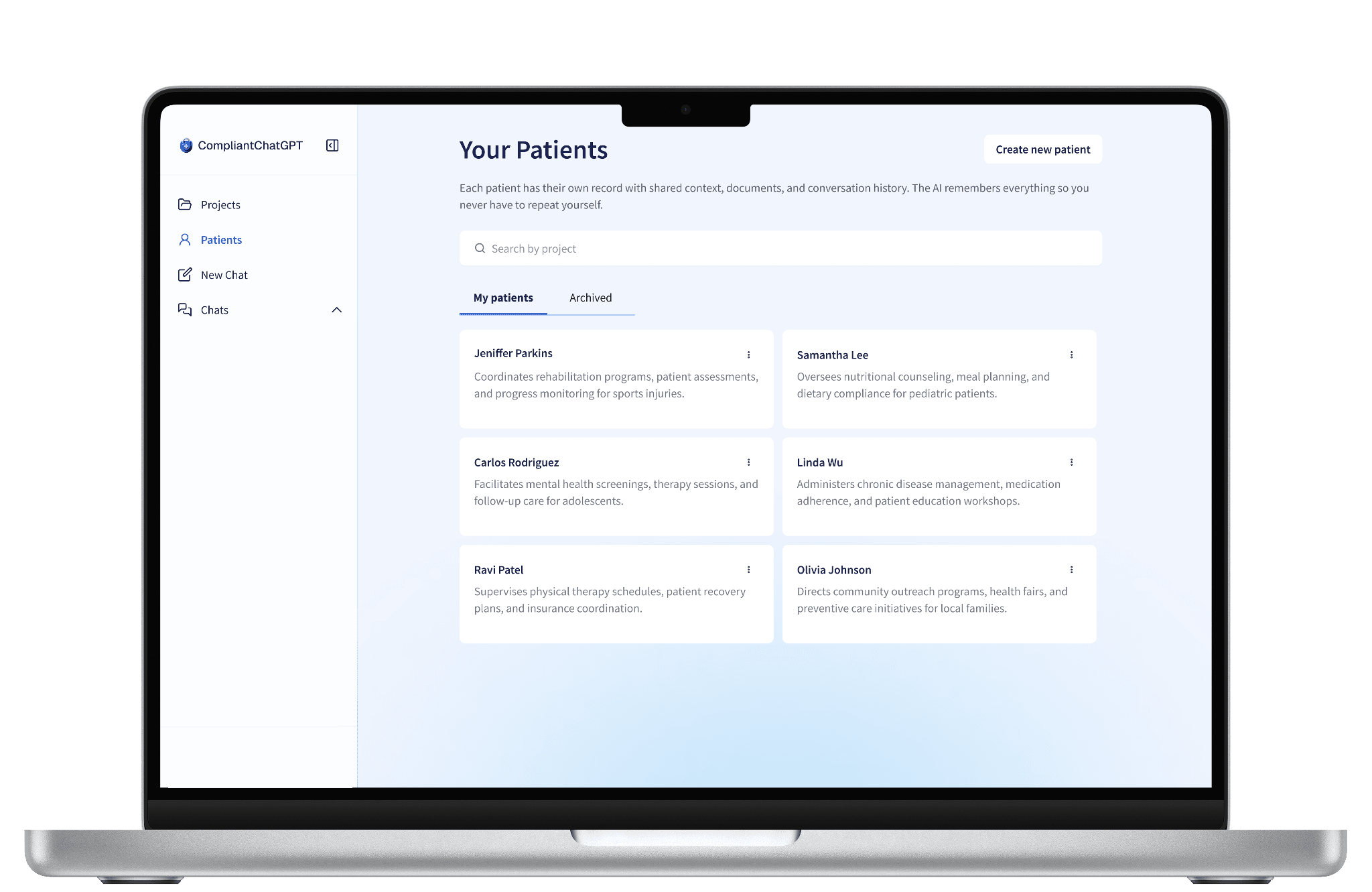
How to set up Patients
From creating a patient record to linking your EHR — here's everything you need:
How to Create a Patient
Navigate to the Patients section from the left sidebar.
Click Create Patient (or use the button in the top-right corner).
Enter the patient's full name (required).
Optionally add background notes — paste a brief clinical summary or type anything the AI should know. For example: "58M, history of T2DM and hypertension, currently on Metformin 1000mg."
Click Create new patient.
That's it. You can now start conversations directly from the patient's page, and the AI will have full context from the first message.
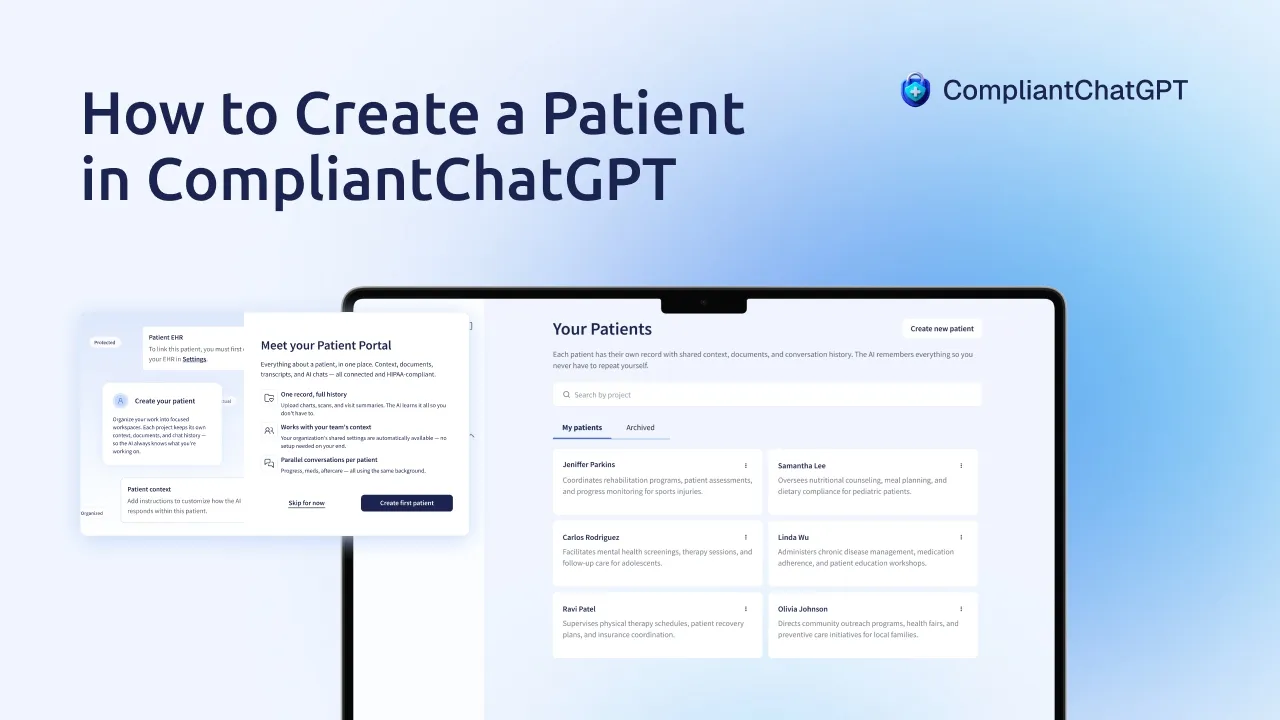
Check out our demo on how to create a patient in CompliantChatGPT:
How to Add Patient Context
Once a patient is created, open their detail page and look for the Patient Context section on the right side of the screen.
Click the + icon to add instructions, or the pencil icon to edit existing ones.
Write any instructions that should apply to every conversation with this patient. These act as persistent system-level guidance for the AI.
How to Link a Patient to Your EHR
If your team has an active EHR integration:
Open the patient's detail page.
In the Patient EHR section, click the + icon.
Search for the patient in your EHR system.
Select the matching record to link it.
Once linked, the AI can access the patient's clinical data from your EHR in every conversation. To disconnect, click the unlink icon.
Note: To use EHR linking, your team must first connect an EHR in Settings → Integrations. See our How to Connect my EHR article for setup instructions.
Starting a Conversation from a Patient
From any patient page, you'll see a message input bar at the bottom. Type your message and hit send — the new conversation is automatically linked to that patient.
You can also link an existing conversation to a patient, or unlink it if you need to reorganize. You can even swap a conversation from a project to a patient directly, without needing to unlink first.
Managing Your Workspace
Patients have these management tools to keep your workspace organized:
🔍 Search: Quickly find any patient or project by name.
📂 Filter: Toggle between active and archived records.
✏️ Edit: Update name, description, or context anytime.
📦 Archive: Move completed records out of your active view.
♻️ Restore: Bring archived records back to active status.
🗑️ Delete: Permanently remove a record when no longer needed.
Frequently Asked Questions
What information do I need to create a Patient?
Only the patient's full name is required. You can optionally add background notes (such as a clinical summary, diagnosis history, or current medications) to give the AI context from the very first conversation.
What are Patient Context instructions?
Patient Context is a set of custom instructions that apply to every conversation under that patient. For example, you could write: "This patient has a penicillin allergy — always flag alternative antibiotics." The AI will follow these instructions automatically in all linked chats.
Can I connect a Patient to my EHR?
Yes, if your team has an active EHR integration (such as Healthie). Open the patient's detail page, go to the Patient EHR section, and search for the matching record in your EHR. Once linked, the AI can access the patient's clinical data in every conversation.
What happens when I archive a Patient?
Archiving moves the patient out of your active list but does not delete any data. All conversations, context, and EHR links are preserved. You can restore an archived patient at any time from the "Archived" tab.
Can I have multiple conversations for the same Patient?
Yes. You can start as many conversations as you need under a single patient. Each one shares the same background context, so the AI always knows who you're talking about — whether you're drafting a progress note, reviewing labs, or planning aftercare.
What happens if I delete a Patient?
Deleting a patient permanently removes the record. If you're unsure, use archive instead — it keeps everything intact while clearing your active workspace.

