Patients & Projects
Organizing Chats by Projects
Projects let you organize conversations by topic, department, or goal — independent of any specific patient. Think of a project as a focused workspace for a particular initiative.
Name and description: Clearly label what the project is about
Project Context (custom instructions): Add instructions that shape how the AI responds. E.g., "All outputs should follow APA citation format" or "Focus on pediatric oncology protocols."
Linked conversations: Every chat started under a project stays grouped together. No more losing context between sessions.
Archive and restore: Completed a research project or wrapped up a protocol review? Archive it. Restore anytime if you need to revisit.
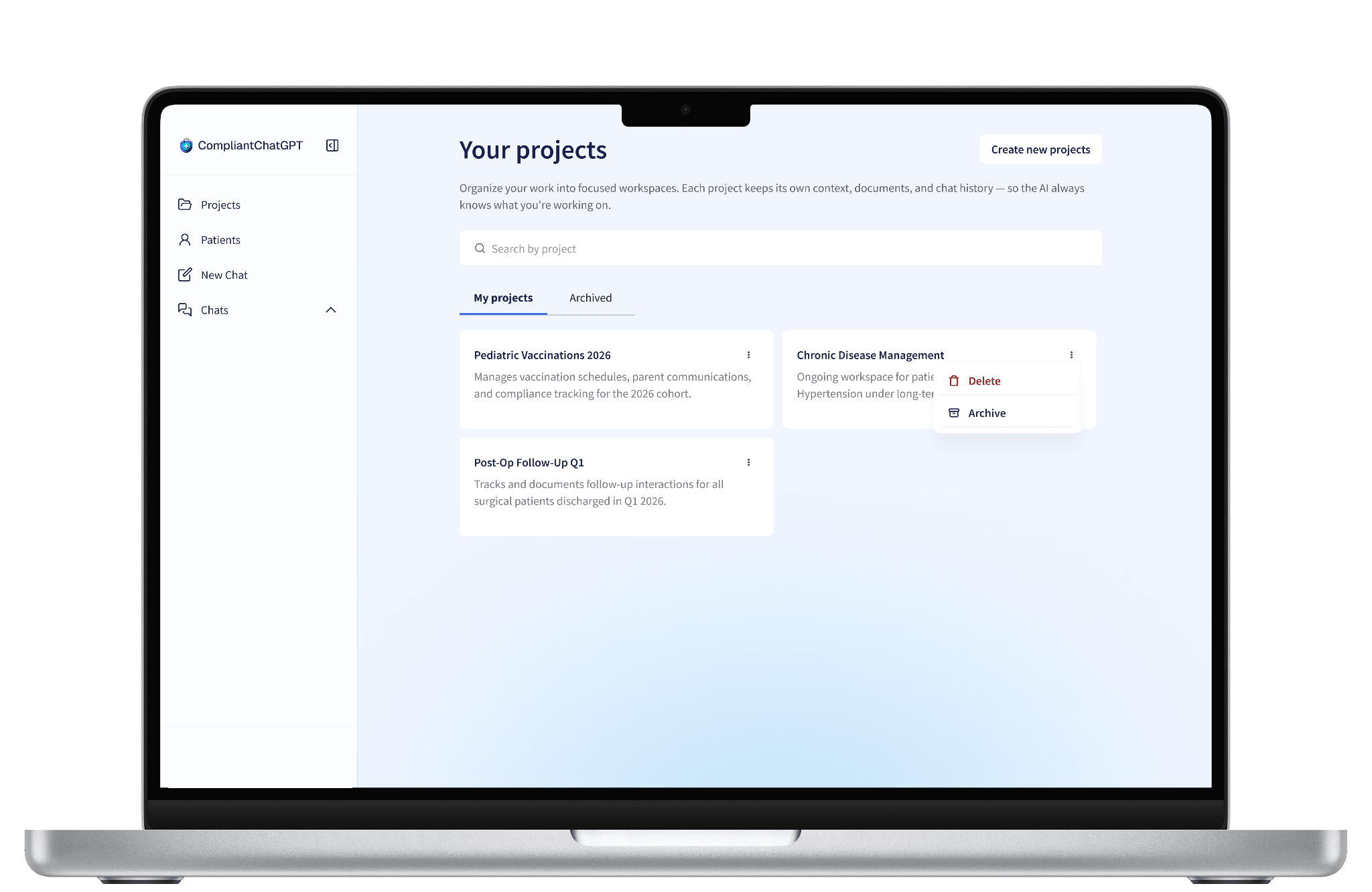
How to Set up Projects
How to Create a Project
Navigate to the Projects section from the left sidebar.
Click Create Project.
Enter a project name (required).
Optionally add a description to give the AI and your team context about the project's purpose.
Click Create new project.
You can now start conversations directly from the project page. The AI will carry the project's context into every chat.
How to Add Project Context
Open the project's detail page and find the Project Context section on the right.
Click the + icon to add instructions, or the pencil icon to edit.
These instructions persist across all conversations in the project, so the AI always knows the scope and rules of your work.
Starting a Conversation from a Project
From any project detail page, you'll see a message input bar at the bottom. Type your message and hit send — the new conversation is automatically linked to that project.
You can also link an existing conversation to a project, or unlink it if you need to reorganize. You can even swap a conversation from a project to a patient directly, without needing to unlink first.
Managing Your Workspace
Patients have these management tools to keep your workspace organized:
🔍 Search: Quickly find any patient or project by name.
📂 Filter: Toggle between active and archived records.
✏️ Edit: Update name, description, or context anytime.
📦 Archive: Move completed records out of your active view.
♻️ Restore: Bring archived records back to active status.
🗑️ Delete: Permanently remove a record when no longer needed.
Frequently Asked Questions
What are some examples of how to use Projects?
Projects work well for any initiative that spans multiple conversations. Common examples include: organizing a research literature review, grouping administrative tasks for a department, building out a clinical protocol, preparing a presentation, or managing a quality improvement initiative.
What are Project Context instructions?
Similar to Patient Context, Project Context lets you write instructions that the AI follows in every conversation under that project. For example: "All outputs should follow APA citation format" or "Focus on pediatric cardiology guidelines."
Can I move a conversation from one Project to another?
You can unlink a conversation from its current project and then link it to a different one. This lets you reorganize your workspace as your needs change.
Is there a limit to how many Projects or Patients I can create?
There is no hard limit. Create as many as you need to keep your work organized.

